
Explore goals and funnels
Goals show whether an important action happened. Funnels show how website visits or app installs move through ordered steps. Start with the goals and funnels already configured for your product, or create a goal, build a website funnel or build an app funnel.
Explore a goal
In Goals, choose Unique visitors or Completions. Select a goal row to focus its trend. Open its three-dot menu to see the available actions.
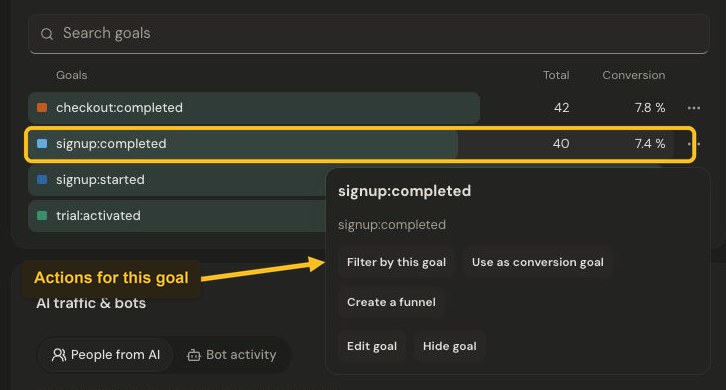
Open a goal’s three-dot menu to explore its available actions. Select the image to view it at full size.
Filter by this goal focuses the report on the goal. Depending on your access, you can also choose it as the conversion goal, start a funnel draft, or edit its presentation.
Completions count event occurrences, so repeated actions can produce more completions than unique visitors. Use Jelto’s displayed conversion figure instead of dividing rounded numbers yourself.
Read an existing funnel
Find Funnels and choose a definition from the funnel selector. Read its steps from left to right. A website funnel counts visits; an app funnel counts installs. The percentages between steps show progression to the next step.
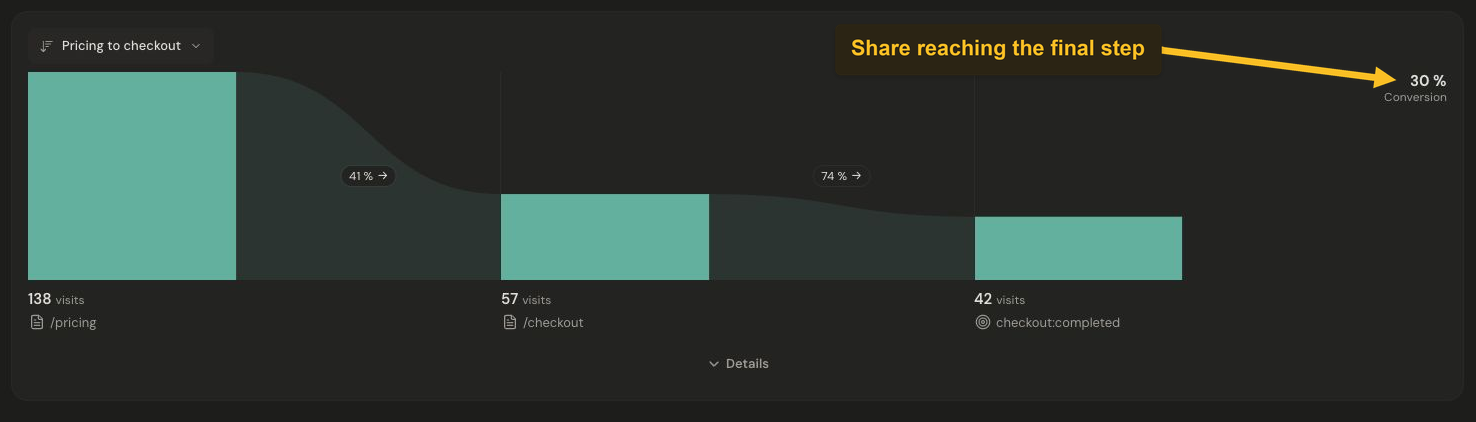
The overall conversion rate is the share of entering visits that reached the final step. Select the image to view it at full size.
The Conversion figure is the share of entrants that reached the final step. In the website example above, the path moves from /pricing to /checkout, then to the observed checkout:completed goal.
A website funnel follows steps within a website visit. Automatic payment and subscription goals can use a verified checkout reference to join that visit. Only linked goals can advance the funnel. A checkout-named browser goal remains a tracked action; verified payments and money are reported separately. Website and app identities remain separate.
Read an app funnel
An app funnel follows an install through exact onboarding or custom event names, such as onboarding:complete → upgrade_click. Steps can happen on different days. Each install counts once at each step, in order; a click before completion cannot advance the second step unless another click follows completion.
The selected dates define entry at step 1. Later steps count through the last completed day in the reporting timezone, even after the selected end date. Today's entrants are not yet eligible; a range with no completed entry day is withheld. Young cohorts can gain conversions later, so compare cohorts with similar time to progress.
Counts under five installs return below_floor, including steps with no observed completions. Preserve those states instead of displaying zero or deriving a rate from suppressed counts. The first step's previous-step rate is not_applicable.
Use App, App version, Architecture, Install age or OS to filter the entry cohort. Website source and page filters do not apply to app funnels. The app funnel guide includes an onboarding example and explains date selection.
To create or edit a definition, open Settings → Events & funnels → Funnels. Choose website or app when creating a funnel.