
Create a website funnel
A funnel measures how website visits progress through a sequence, such as opening pricing, starting checkout and reaching a success page. Start with a short journey you can verify yourself.
Before you start
Install website tracking on the relevant hosts. Register and send any custom goals used by the journey. Funnel steps use existing page paths and event names; creating a funnel does not start sending those events.
Choose a starting point
- Open Settings → Events & funnels → Funnels → Add funnel.
- Expand Start with a template and choose Signup, Checkout journey, Download journey, or Blank funnel.
- Give it a recognizable Name. Templates are editable starting points: replace their example paths and event names with your own.
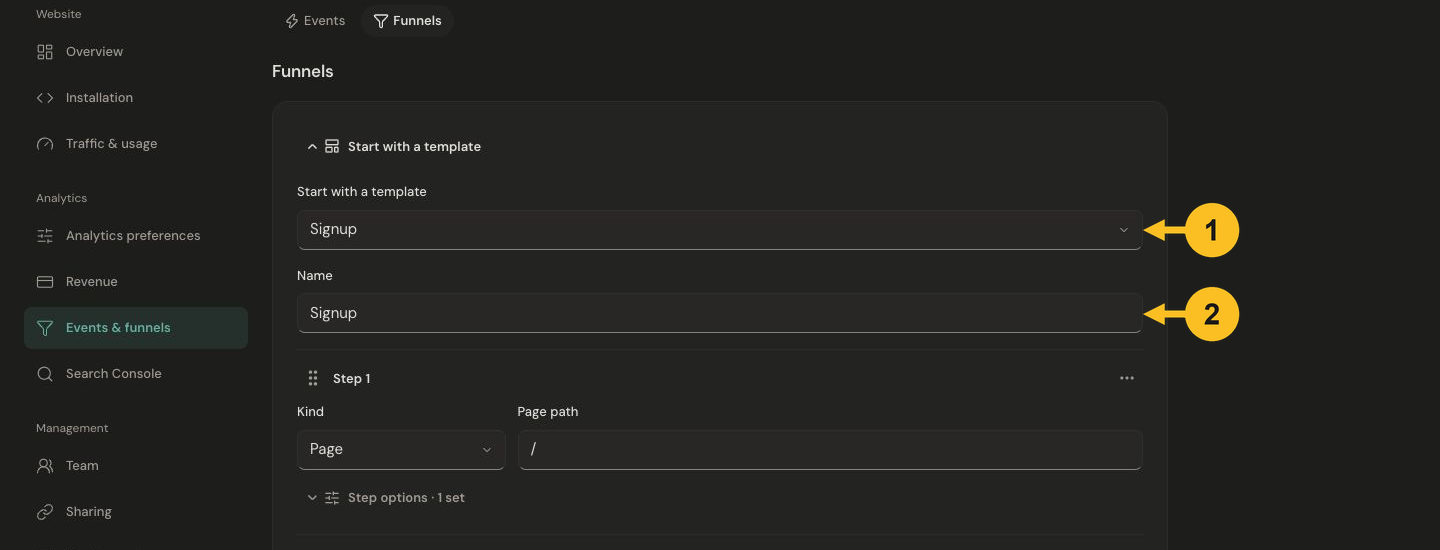
Choose a template and name the funnel before adapting its steps to your website.
Define each step
- Choose Page or Goal under Kind. Enter the Page path, such as
/signup, or the exact Event name, such assignup. - Open Step options when needed. Step label changes the display name. Hostname (optional) restricts the step to one registered host. For pages, Equals matches one path; Starts with matches a prefix, so
/docsalso matches/docs/getting-started. - Use Add step for additional steps. A funnel has 2–8 steps, and a product can save up to 20 funnels.
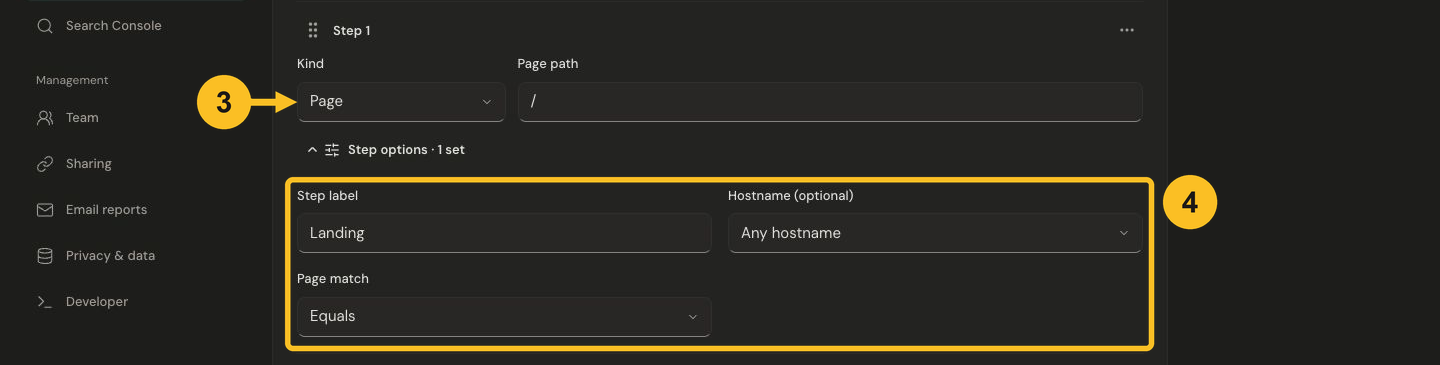
Select Page or Goal, then use Step options to set the label, hostname and path matching rule.
Review and save
- Use the reorder handle or a step's actions menu to arrange the actual journey. For keyboard use, use the available step actions.
- Open Funnel preview, check the ordered labels and choose Save.
- Choose View funnel results from the saved funnel and set the reporting dates. Read funnel results to interpret completion and drop-off.
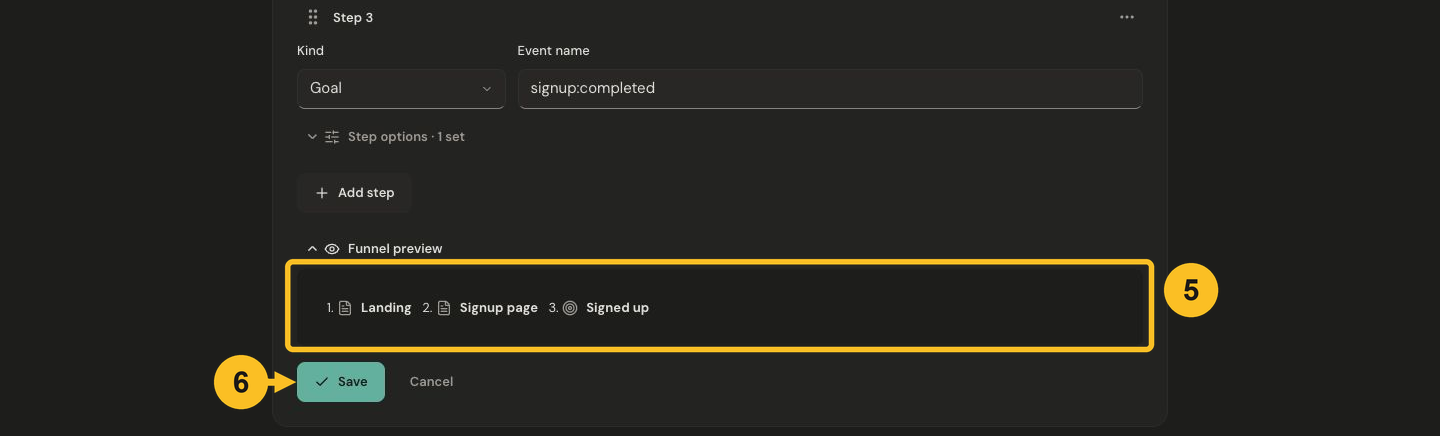
Review the ordered labels before saving. Funnel preview shows the definition, not measured conversions.
What the results mean
Steps must occur in order within the same website visit. Extra activity between steps does not by itself complete a step. A visitor returning in a different visit is not a continuation of the original journey. Imported daily totals cannot reconstruct individual ordered visits.
A payment provider record is not automatically a website goal, and an app install is not a browser funnel step. Use a confirmed browser action or success-page visit when appropriate, then check money separately in Revenue. Jelto does not join a website visitor to an app install.
See two complete examples or troubleshooting.