
Filter your data
Filters help you answer a narrower question, such as “What did traffic from Google do?” Start with a date range, then add the condition you want to investigate.
Add a source filter
- Select Filters beside the date controls.
- Keep Traffic attribute, choose source under Dimension, leave Condition as is, and enter Google under Value.
- Select Apply filter.
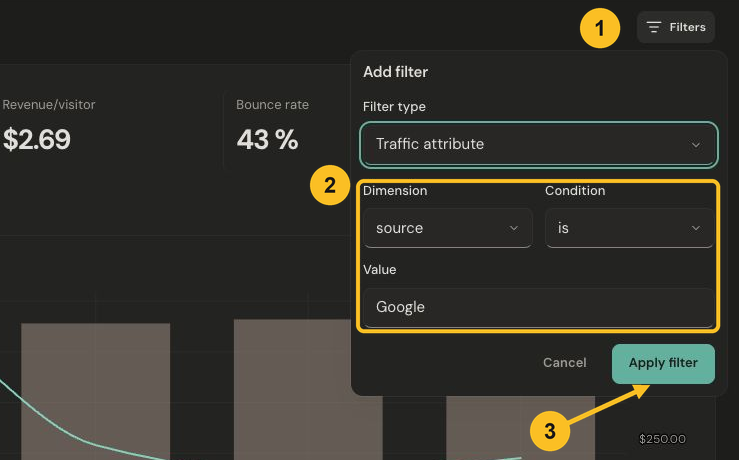
Open Filters, enter Source is Google, and select Apply filter. Select the image to view it at full size.
Check the result and reset
- Check the Source is Google chip above the metrics. The report now shows the selected source for the same dates.
- Select Clear all to return to the unfiltered report. To remove just one condition, select the × on its chip.
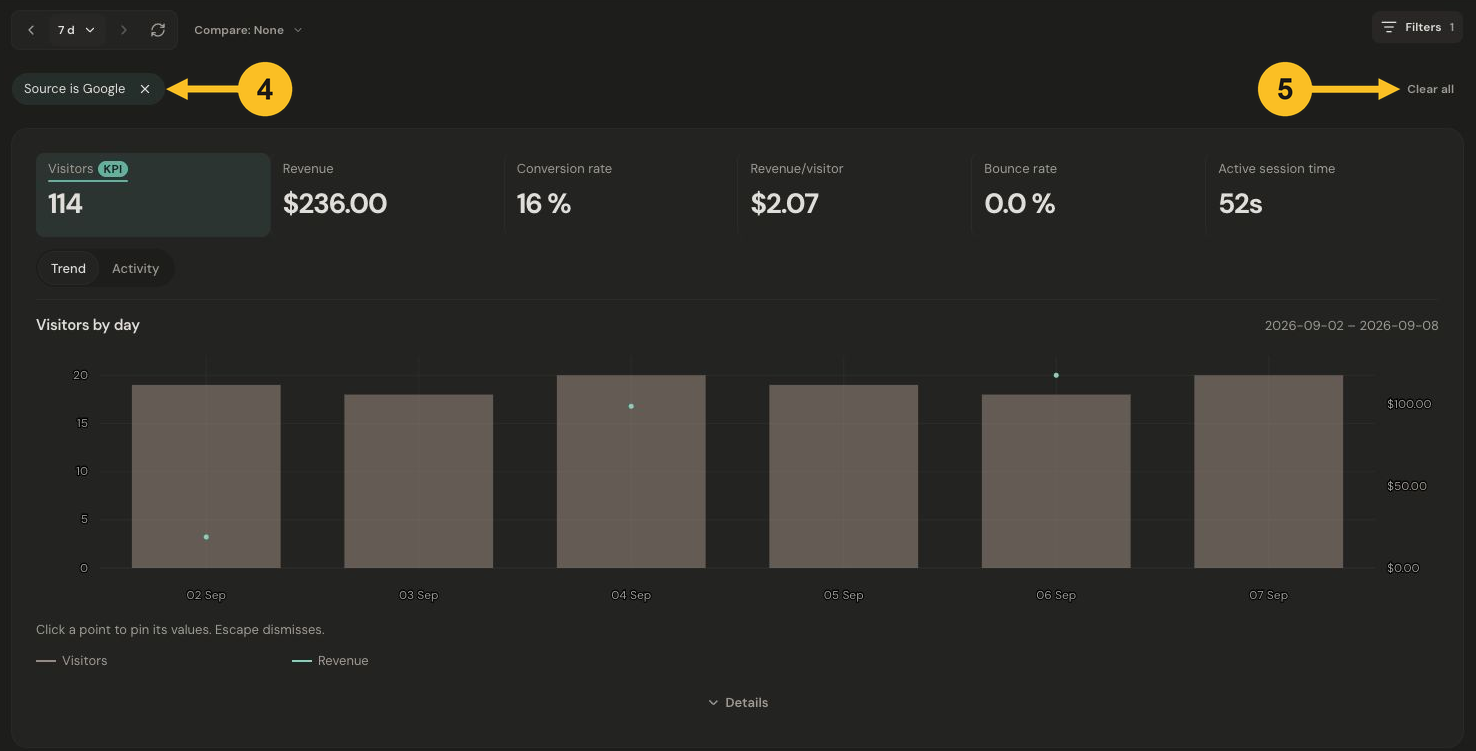
Check the applied filter above the updated metrics; Clear all restores the full report. Select the image to view it at full size.
You can also use a row’s filter action in a breakdown card. Check the chips afterward so you always know what the report includes.
Reuse a useful view
With filters applied, open Filters and choose Save as segment. A saved segment lets you reuse those conditions without changing your current dates.
For website goals, Did an event and Did not do an event narrow website sessions by an observed event. Availability depends on the metric and data being queried. An unavailable result does not mean that no activity happened.
Next: Understand your traffic.