
Verify website tracking
Verify collection using a real visit to the published site. Loading the script file and receiving an event are separate checks.
Check your installation
- Publish the script and open Settings → Installation in Jelto.
- Under 2. Check your installation, select the correct Website to check. A visit to
www.example.comdoes not verify a different hostname. - Choose Open website and view a page in a normal browser tab. If your site requires an analytics consent choice, make that choice before testing.
- Return to Jelto and choose Check traffic. Read the reported status and Connection details.
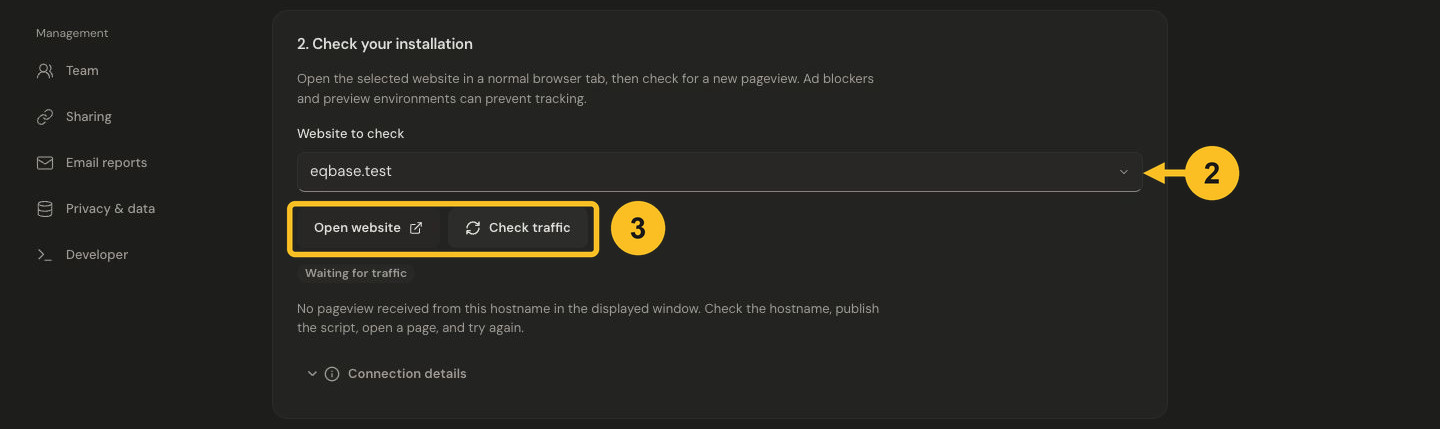
Choose the published hostname, open your website, then check for traffic. This demo is still waiting for a pageview.
What success means
A recent pageview from the selected hostname confirms collection for that page. Open a second page through your site's normal navigation and confirm it also appears in the dashboard's Pages card. Choose a date range that includes today and remove filters while checking.
Still waiting for traffic
- Check the live site's HTML for your product ID and the script URL.
- Confirm the script loads and the collection request is allowed by the site's CSP.
- Try a browser without a blocker affecting the tracking host.
- Register the hostname actually shown in the address bar. Redirects may change it.
- Localhost,
file:pages, automation and?jelto_ignore=1are excluded by default. Use the explicit local testing option for localhost; automated visits are not a substitute for this check.
See No data arriving for a focused checklist.