
Understand revenue
Revenue helps you see which channels contribute to the business. Open a product with recorded payments, choose a date range, and check the active filters before comparing results.
Read revenue by channel
The Revenue by channel card combines a revenue trend with a breakdown of revenue and purchase counts. Start with Source, or choose another view such as Channel or Campaign.
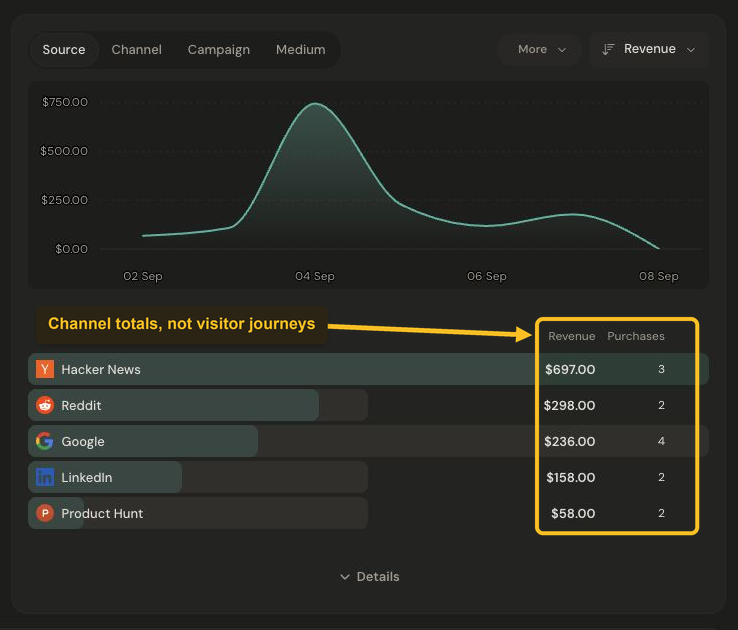
Revenue and purchase counts are grouped by the channel label carried by the checkout. Select the image to view it at full size.
Each payment is grouped by the channel label its checkout carried. Revenue is attributed to that label; the dashboard does not provide an individual visitor’s purchase history.
Compare traffic and revenue
Use Revenue above the overview chart to focus on revenue over time. The Sources card helps you compare traffic and revenue side by side. Revenue/visitor is an aggregate average for the selected range, not the amount spent by each visitor.
A high-traffic source is not necessarily the largest revenue source. Look at both revenue and purchase count before drawing a conclusion from one unusually large purchase.
Understand gaps
A dash can mean that no matching revenue rows exist for a source. Missing attribution is not proof that the traffic produced no value. If revenue appears under Direct unexpectedly, see why revenue shows Direct.
Reporting currency and renewal preferences can affect the displayed totals. If historical exchange rates are missing, Jelto keeps that incompleteness visible.
Need to connect payments? Start with the Stripe, Lemon Squeezy, or Polar setup guide.